Email Examples to Inform: 15 Professional Templates for 2026

Bhavya Barot
Informing a client about a change, confirming an appointment, announcing an update — these emails are part of the daily routine for any financial advisor or client-facing professional. The problem? Writing the same messages over and over wastes time that should be spent on relationships and growth.
In this guide, you'll find 15 ready-to-use professional email templates for the most common situations — from appointment confirmations to account transitions — plus guidance on how to automate them while keeping the personal touch that builds trust with high-net-worth clients.
How to write an effective informative email
A successful informative email is built on a simple principle: convey essential information quickly, clearly, and professionally. No filler, no fluff. Just the facts, presented so your recipient immediately understands what concerns them and what they need to do.
The 5 basic principles
Clarity and conciseness. Your reader should understand the purpose of your email in under 30 seconds. Start with the essential, avoid convoluted phrasing. An introductory sentence, the context in 2–3 lines, and the main information highlighted.
Catchy subject line. Your subject line must be explicit and create an urge to open. "Important Update" is vague. "Confirmation of your appointment on January 15th at 2 PM" is clear and actionable.
Logical structure. Organise information in order of importance. Start with the expected action or main information, then provide necessary context. Use short paragraphs (2–4 sentences maximum) and bullet points to facilitate skimming.
Tone adapted to the context. An email announcing a technical issue will not have the same tone as an order confirmation. Adapt your level of formality to the client relationship and the seriousness of the information. Remain professional without being robotic.
Clear call-to-action. Even a purely informative email should indicate what you expect from the recipient. "Please confirm receipt," "Feel free to contact me," or simply "No action required" — let the reader know how to respond.
Common mistakes to avoid
Too much jargon. Your recipient may not have your technical expertise. Explain specialised terms or use accessible language.
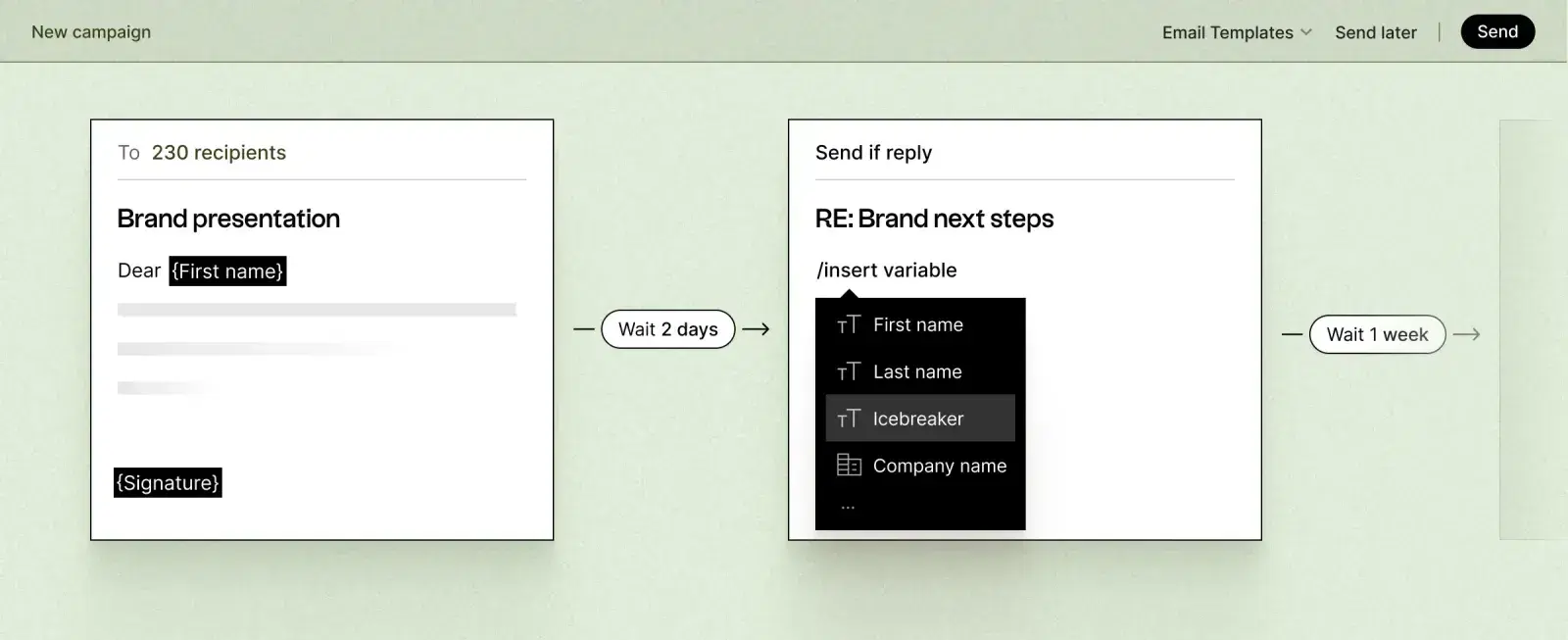
Lack of personalisation. An email starting with "Dear Client" instead of a first name creates instant distance. Modern tools let you automatically insert names and other variables to personalise at scale — even across a large book of relationships.
Absence of context. You are immersed in your daily work — your client is not. Briefly recall the context before announcing information.
Inappropriate timing. Sending an informative email on Friday evening at 6 PM guarantees it will be buried by Monday morning. Best sending windows: mid-morning (9–11 AM) or early afternoon (2–3 PM) on weekdays.
15 email templates to inform your prospects and clients
1. Email to confirm a sales appointment
When to send: Immediately after scheduling an appointment with a prospect or client. A confirmation email professionalises your approach and drastically reduces no-shows.
Automation tip: Connect your scheduling tool to your email platform to automatically trigger this. Also schedule a reminder 24 hours before the appointment.
Subject: Appointment confirmed — [Date] at [Time]
Hello {{firstname}},
This confirms our appointment on [date] at [time] for [purpose of the meeting].
Details:
- 📅 Date: [date]
- ⏱️ Duration: [duration]
- 🔗 Link: [video call link or address]
- 📎 Preparation: [document to review / topics to prepare, if any]
Looking forward to speaking with you. Feel free to reach out if anything changes.
[Signature]
2. Email to request additional information
When to send: When qualifying a lead and needing precise information to build a relevant proposal.
Automation tip: Integrate this into your prospecting sequences. If no response within 3–4 days, schedule an automatic LinkedIn follow-up to maximise your chances.
Subject: A quick question before our next step — {{companyName}}
Hello {{firstname}},
To make sure our next conversation is as useful as possible, I have a few quick questions:
- [Question 1 — specific and relevant]
- [Question 2 — specific and relevant]
- [Question 3 — specific and relevant]
This will take less than 5 minutes and will allow me to [concrete benefit for them].
You can reply directly to this email. Thank you in advance!
[Signature]
3. Order confirmation email
When to send: Automatically after an order is validated or a contract is signed. Reassures your client and sets the foundation for a structured relationship.
Automation tip: Configure your CRM to trigger this email as soon as a deal moves to "Won" status.
Subject: Your order is confirmed — Reference [REF]
Hello {{firstname}},
Thank you for your trust — your order has been confirmed.
Summary:
- 📦 Order: [description]
- 💰 Amount: [amount]
- 📋 Reference: [reference number]
What happens next:
- [Step 1 — timing]
- [Step 2 — timing]
- [Step 3 — timing]
You will receive the [invoice/contract/documents] within [timeframe]. Any questions? Contact me directly: [email] / [phone]
Thank you again, [Signature]
4. Site visit announcement email
When to send: 48 hours before a physical visit to a client or prospect. Anticipate logistical issues and demonstrate professionalism.
Automation tip: Schedule this 2 days before any planned visit in your calendar. A follow-up workflow can request access information if no response is received within 24 hours.
Subject: Visit scheduled at {{companyName}} on [date]
Hello {{firstname}},
I look forward to meeting you at your premises on [date] at [time] for [purpose of the visit].
Planned schedule:
- [Time]: Arrival and welcome
- [Time]: [Main activity]
- [Time]: Departure
I'll be arriving from [city] and plan to be there 15 minutes early. You can reach me on the day at [phone].
Are there any access constraints I should be aware of — badges, parking, access codes?
See you soon, [Signature]
5. Email to announce a delay
When to send: As soon as you identify a risk of delay, before the deadline. Anticipated transparency is always better received than a bad surprise.
Automation tip: Set up alerts in your project management tool to notify you when a milestone is at risk.
Subject: Planning update — [Project Name]
Hello {{firstname}},
I wanted to inform you directly about an adjustment in the schedule for [project/delivery].
The situation: The [delivery/stage] initially scheduled for [original date] will be completed on [new date] — a delay of [X days].
The reason: [Clear and transparent explanation]
What we are doing about it:
- [Corrective action 1]
- [Corrective action 2]
- [Compensation if applicable]
I understand this delay may impact your plans. Can we have a quick chat to see how to minimise the consequences on your end?
I remain available, [Signature]
6. Technical incident email
When to send: Immediately during a major incident impacting the customer experience. Proactive communication limits frustration.
Automation tip: Prepare pre-approved templates for different incident types to improve response time. Speed of communication is critical here.
Subject: ⚠️ Incident in progress — [Affected Service]
Hello {{firstname}},
I'm writing to inform you that a technical incident is currently affecting [service/feature].
Status update:
- 🔴 Issue: [Simple description]
- 📊 Impact: [Level of impact on your usage]
- 🔍 Cause: [If identified]
Resolution in progress: Our team is actively working on it. Estimated return to normal: [timing].
Temporary workaround: [If available]
I'll keep you updated and confirm resolution as soon as possible. For anything urgent: [support contact]
My apologies, [Signature]
7. Sales transition email
When to send: During a change of account manager or point of contact. Avoids the feeling of client abandonment.
Automation tip: Build a transition workflow: this initial email → introduction of the new contact → automatic invitation to a three-way handover meeting.
Subject: Your new contact at [Company]
Hello {{firstname}},
I'm writing to introduce [First Name Last Name], who will now be your primary point of contact with us.
Why this change? [Positive reason: reorganisation, specialisation, improved service]
About [First Name]: They have [X] years of experience in [field] and are very familiar with [your industry/your challenges]. They will be your contact for [scope].
Smooth transition: We'll organise a three-way meeting on [date] to ensure a smooth handover. [First Name] has already reviewed your account.
I remain available during the transition, [Signature]
8. New feature announcement email
When to send: After the deployment of a major new feature. Turn an announcement into an engagement opportunity.
Automation tip: Segment your send based on customer interest — first those who requested this feature, then active users, then your full base.
Subject: 🚀 New: [Feature Name] is now live
Hello {{firstname}},
Great news: we've just launched [Feature Name].
What this means for you:
- ✨ [Benefit 1 — concrete impact]
- ⚡ [Benefit 2 — time/performance gain]
- 🎯 [Benefit 3 — business result]
This update directly addresses feedback we received about [specific challenge]. Full details in [documentation link].
Want to see it in action? I'd be happy to walk you through it in 15 minutes. When are you free this week?
See you soon, [Signature]
9. Price or contract change announcement email
When to send: At least 30 days before any pricing or contract change. Anticipated transparency avoids unpleasant surprises.
Automation tip: Segment by customer type (Enterprise vs. SME) to adapt the level of detail and the benefits highlighted.
Subject: Update to [Product/Service] — {{companyName}}
Hello {{firstname}},
I'm writing to let you know that [product/service] will be updated starting [date].
The changes:
- [Change 1 + positive impact]
- [Change 2 + positive impact]
- [Change 3 + positive impact]
What stays the same:
- [Stable element 1]
- [Stable element 2]
These improvements were built based on customer feedback to [main benefit]. No action is required from you — the transition is automatic.
For any questions: [email] / [phone]
Sincerely, [Signature]
10. Meeting invitation email
When to send: To invite multiple participants to a strategic meeting that requires preparation.
Automation tip: Use conditional fields to automatically adapt the level of detail based on the recipient's profile (manager vs. operational team member).
Subject: Invitation — [Meeting Name] on [Date]
Hello {{firstname}},
You're invited to [meeting name] on [date].
Practical information:
- 📅 Date: [date]
- ⏱️ Duration: [duration]
- 🔗 Link: [meeting link]
- 📎 Documents: [preparation link if applicable]
Your presence and expertise in [field] will be valuable for [meeting objective].
Please confirm your attendance by [deadline].
Sincerely, [Signature]
11. Scheduled maintenance email
When to send: At least 7 days before impactful maintenance, with a reminder 48 hours prior.
Automation tip: Schedule automatic sending and reminder from your maintenance calendar.
Subject: ⚙️ Scheduled maintenance — [Date] from [H] to [H]
Hello {{firstname}},
As part of our continuous improvement, we will be performing scheduled maintenance on [date] from [start time] to [end time].
Impact on your services:
- [Service 1]: [Type of impact]
- [Service 2]: [Type of impact]
During this period:
- ❌ [Action not available 1]
- ❌ [Action not available 2]
Our recommendation: [Preparatory action to take before maintenance]
This work will deliver [concrete improvement]. We'll confirm once operations are complete.
Thank you for your understanding, [Signature]
12. Company relocation email
When to send: 2–3 weeks before the move, with a reminder the week before.
Subject: 🏢 New address for [Company]
Hello {{firstname}},
We're growing! Starting [date], we'll be moving to new offices.
Our new address: [Full address], [Postal Code], [City]
What's changing: 📮 Our postal address
What stays the same: ✅ All contact details ([email] / [phone]) ✅ Your account manager ✅ Service quality
[Link to map with parking and transport information]
We look forward to welcoming you at our new space!
[Signature]
13. New employee arrival email
When to send: To announce a new hire who will be in contact with clients or partners. Reinforces transparency and makes future interactions smoother.
Subject: Welcome [First Name] to the team!
Hello {{firstname}},
We're excited to welcome [First Name Last Name] to the team as [position].
Their role: [First Name] will be responsible for [responsibilities] and will be involved in [projects relevant to the recipient].
Their background: [Brief background] — expertise in [field].
You'll have the opportunity to collaborate with them on [context]. They'll be fully up to speed from [date].
Please join us in welcoming them!
[Signature]
14. Employee departure email
When to send: As soon as a departure is confirmed and a successor is identified. Transparency prevents confusion.
Subject: A change within our team
Hello {{firstname}},
I'm writing to let you know that [First Name] is leaving their position as [position] as of [date].
[First Name] contributed to [achievements] and we wish them every success going forward.
Continuity assured: [Successor's First Name] will take over from [date]. Contact: [contact details]
A handover meeting is scheduled for [date] to review all ongoing matters.
Thank you for your understanding, [Signature]
15. Document request email
When to send: For any administrative request — KYC, invoicing, contract. Clarity speeds up processing.
Subject: Documents required — {{companyName}}
Hello {{firstname}},
To finalise [reason], I need the following from you:
Required documents:
- [Document 1]
- [Document 2]
- [Document 3]
Format and submission: Reply to this email in [PDF/Excel/other] format by [deadline].
This will allow us to [concrete benefit] and comply with [regulatory requirement if applicable].
Any questions? Contact me: [email] / [phone]
Thank you in advance, [Signature]
How to automate your informative emails
Writing the same email 10 times a week? Automation solves exactly this problem. But beware: automating does not mean dehumanising.
Why automate
Time saving. Professionals spend around 21% of their time writing emails. Automating recurring messages frees up that time to deepen relationships, focus on planning work, and grow your practice.
Consistency. Your entire team sends messages aligned with your brand. No more variations in tone or missing information.
Personalisation at scale. Modern automation allows for *more* personalisation, not less. Dynamic variables mean contextual adaptation without manual intervention.
Zero errors. A well-designed template eliminates oversights — no more confirmed appointments without a video call link, no more missing dates.
Continuous improvement. Automation generates data. You measure, analyse, and optimise over time.
Tools for automation
Your CRM: HubSpot, Pipedrive, Salesforce can trigger automatic emails on events — deal won, renewal approaching, new contact assigned.
Automatic workflows: Configure precise triggers. Example: appointment created → automatic confirmation email with all details populated.
Dynamic variables: Reusable templates with `{{firstname}}`, `{{companyName}}`, `[appointment_date]` filled automatically. One template covers hundreds of situations.
Multi-channel outreach platforms: Why limit yourself to email? Combining email and LinkedIn in a coordinated sequence generates significantly more responses than single-channel outreach — especially when reaching HNW prospects who receive high volumes of communication.
Automation becomes powerful when it adapts to behaviour: email opened but no response → LinkedIn touchpoint. This contextual intelligence transforms routine communications into genuine relationship-building tools.
Optimising the performance of your informative emails
Metrics to track
Open rate. Is your subject line clear and engaging? Professional email benchmark: 20–35%. Below that? Review your subject lines.
Response rate. For emails requiring action: the percentage of recipients who respond or act. Under 15%? That's usually a clarity issue.
Click-through rate. If links are present (document, calendar, info page): track clicks to measure real engagement.
Average response time. Time from sending to reaction. Helps optimise the timing of automatic follow-ups.
A/B testing your subject lines
Never assume — test. Two subject line versions, two equivalent segments.
Tests to run:
- Short vs. explicit: "Appointment confirmed ✓" vs. "Appointment Confirmation — January 15th, 2 PM"
- With/without emoji: "📅 Appointment tomorrow" vs. "Appointment tomorrow"
- Question vs. statement: "Ready for Thursday's call?" vs. "Everything is set for Thursday"
After 100 sends per version, analyse and adopt the winner. Keep testing.
Advanced personalisation
Dynamic variables. Beyond the first name: `[last_purchase]`, `[date_of_last_interaction]`, `[industry]`. The more precise, the more it resonates.
Segmentation. Create segments by company size, sector, engagement level, or lifecycle stage — and adapt messages accordingly.
Optimal timing. Professional emails perform best Tuesday through Thursday, 9–11 AM or 2–3 PM. Test for your specific audience. Urgent information gets sent immediately. Planned communication gets optimised for the right time slot.
The goal: each recipient should feel like the email was written specifically for them, even though it's part of an optimised automated system.
FAQ: Informative email questions answered
How to choose the right template?
Identify the objective first: inform without expecting a response vs. inform while awaiting action. Assess urgency and the relationship. Long-term client = warmer tone. Cold prospect = more formal.
What's the ideal length?
50–150 words for a purely informative email. Over 200 words? Ask yourself if everything is essential. Golden rule: understanding in under 30 seconds. Use bullet points for detail, paragraphs of 2–3 sentences maximum.
Emojis in professional emails?
Use sparingly. An emoji in the subject line can increase open rates by 15–20% (📅 appointment, ✅ confirmation, 🔔 announcement). In the body: 1–2 maximum, and only if they clarify meaning. Zero for sensitive communications — incidents, delays, contract changes.
How to personalise without wasting time?
Dynamic variables connected to your CRM insert automatically. `{{firstname}}` in the template → automatic replacement for every send. Dozens of variables, zero added time per email.
Can you automate without losing authenticity?
Absolutely. Authenticity comes from the relevance of the message, not from manual writing. A well-personalised automated email, with the right timing and tone, outperforms a generic manual email every time. Use automation for repetitive tasks; keep human judgement for strategy and responses.
Conclusion
Informative emails are the foundation of strong advisor-client relationships. Well-written, they strengthen your credibility and professionalism. Intelligently automated, they free up the time you should be spending with clients.
The 15 templates in this guide cover the situations advisors and client-facing professionals encounter most: appointment confirmations, account transitions, change announcements, and more. Adapt them to your context, personalise with dynamic variables, and build them into your workflows.
A good informative email is clear, concise, arrives at the right time, and makes it easy for the reader to act. Automation doesn't prevent you from being personal — it lets you be personal at scale.
Looking to go further with your outreach? Spaces combines personalised email and LinkedIn outreach into a fully managed programme that books qualified meetings directly into your calendar.